SWOT Analysis Template
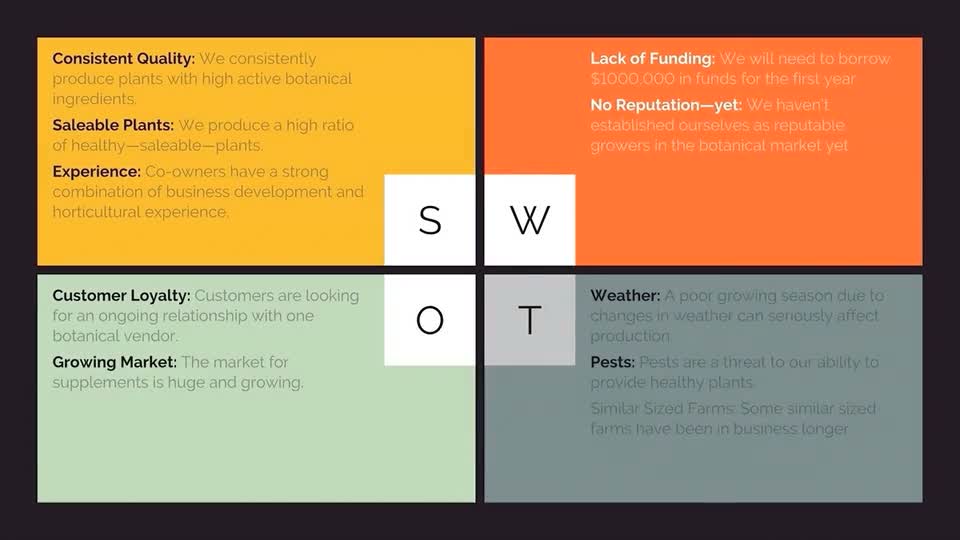
SWOT analysis template styles
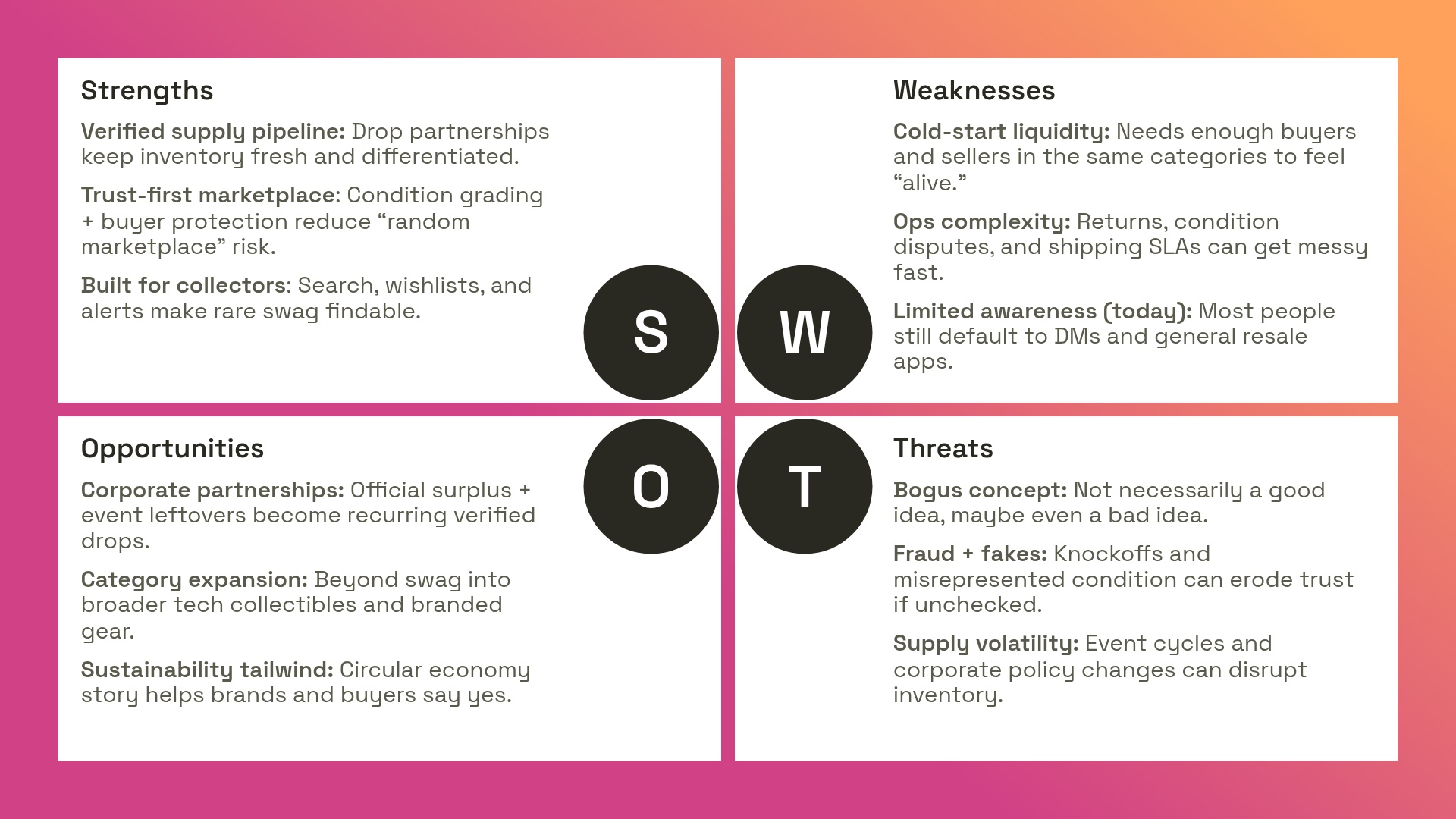
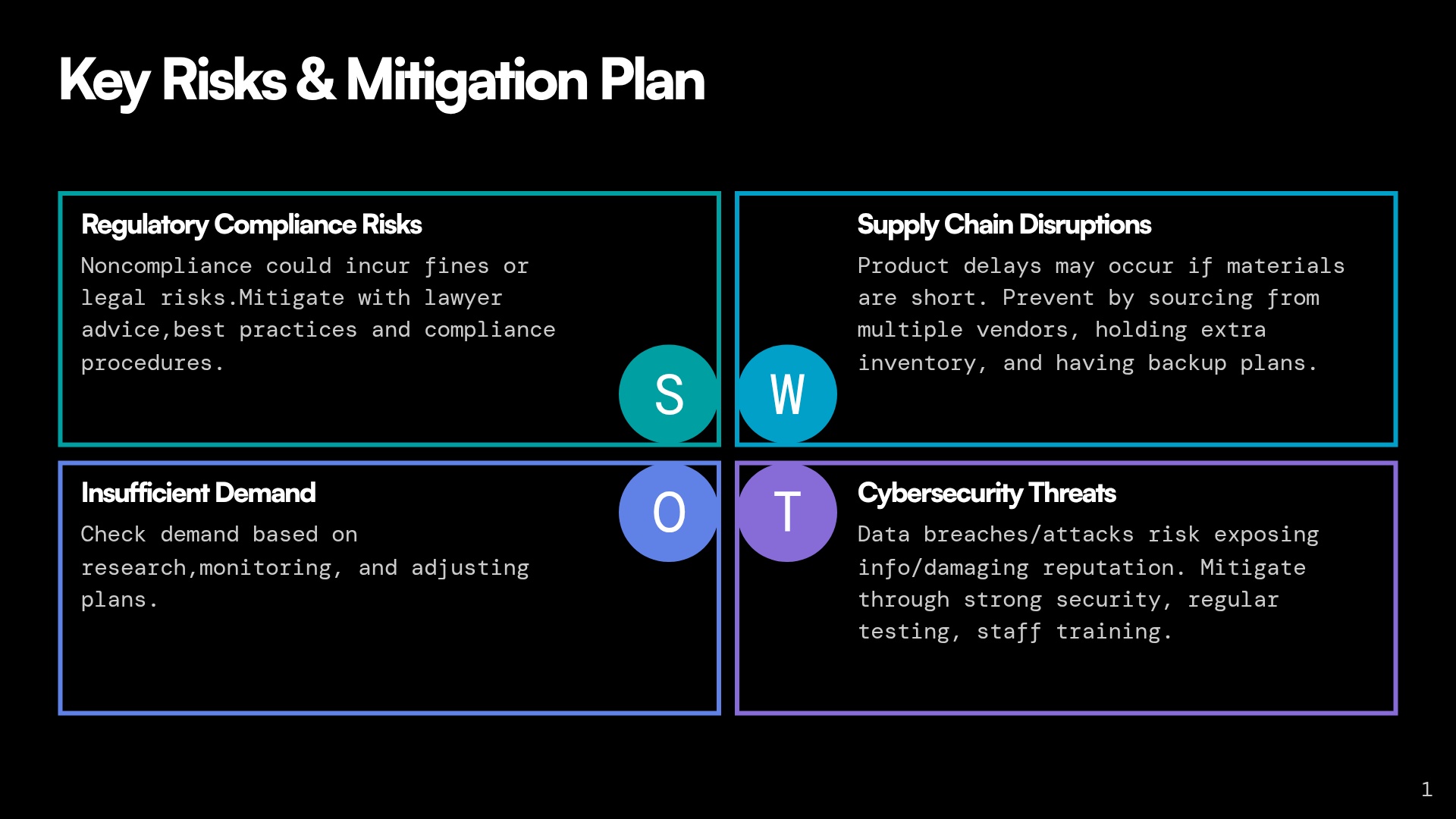
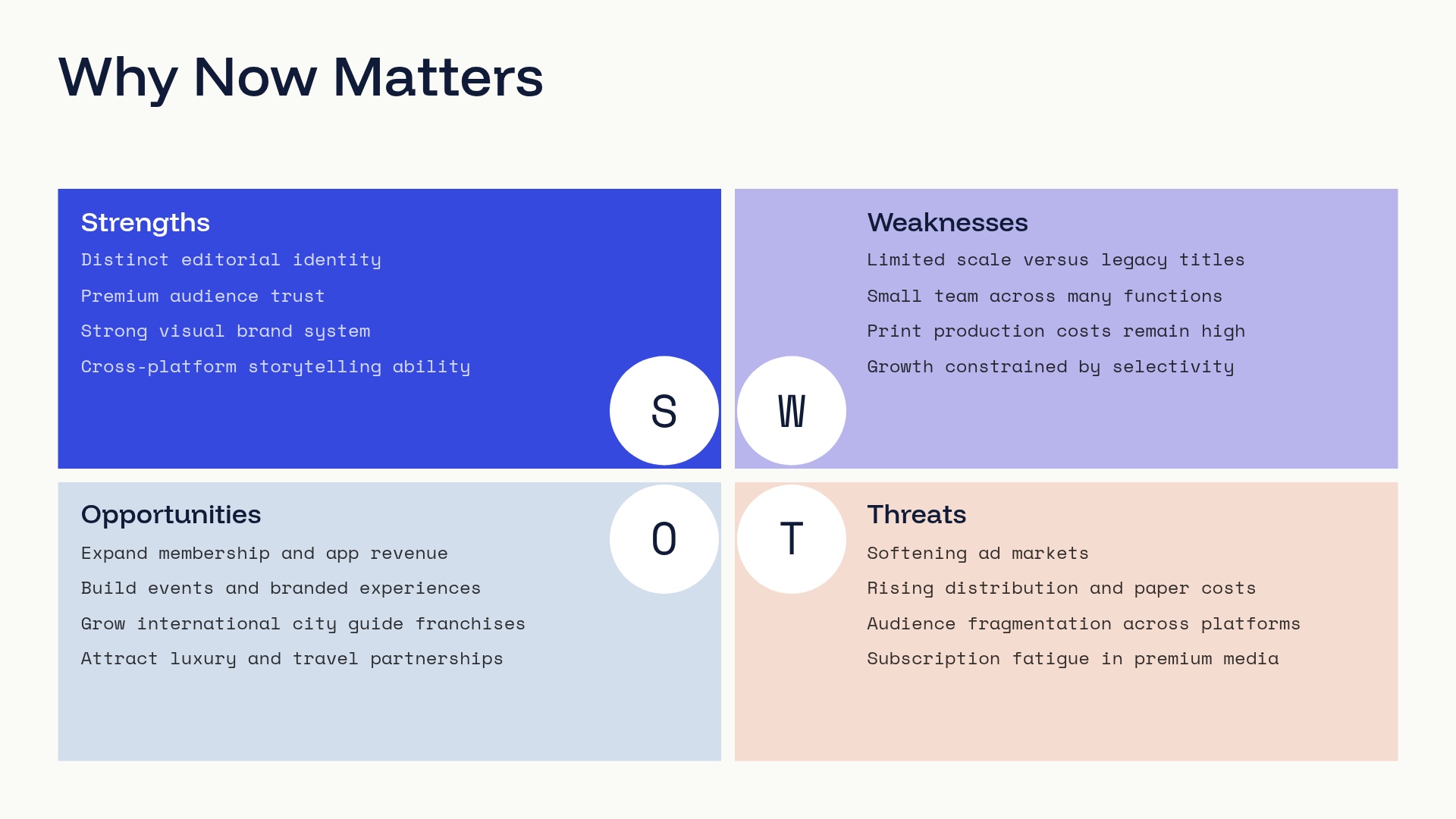
What is a SWOT analysis, and when should you use one?
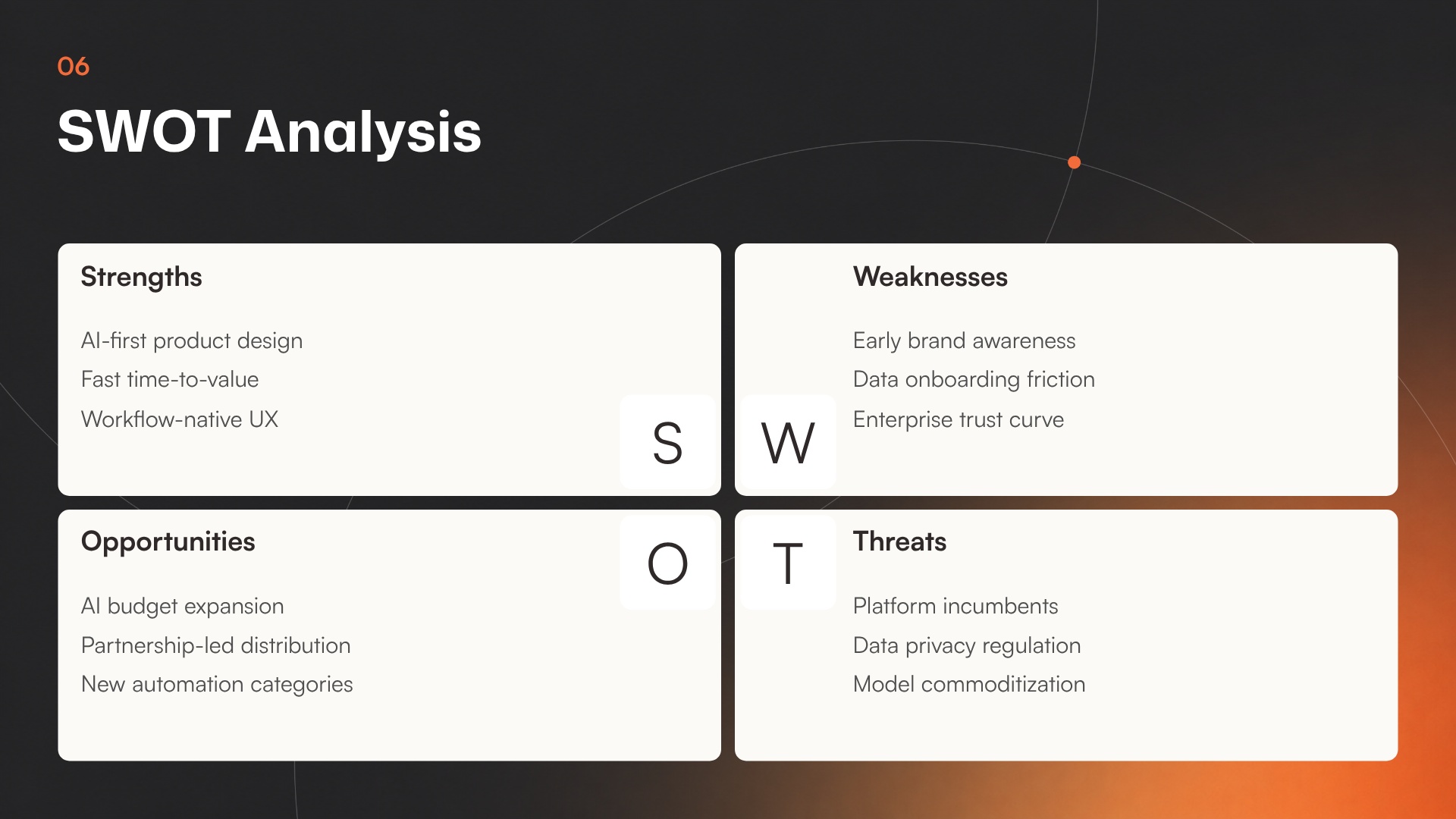
SWOT analysis is an evaluation model used to help identify strengths, weaknesses, opportunities, and threats to a business, project, or opportunity. SWOT itself is an acronym standing for Strengths, Weaknesses, Opportunities, and threats. A typical SWOT diagram includes both potential internal and external factors and formats them into a single four-quadrant model. An effective SWOT analysis organizes data into four basic categories:
Strengths
Gives insights as to what a company, product, or project does best.
Weaknesses
Describes potential roadblocks or hurdles that will need to be overcome within an organization or project
Opportunities
Highlights external circumstances or situations for a company or organization to put their strengths to good use.
Threats
Explains external forces, factors or situations that could be problematic or make it harder to reach a goal.
A SWOT analysis template simplifies the process of designing your own SWOT matrix for a presentation. Before designing your own, take a look at the SWOT slide template below.
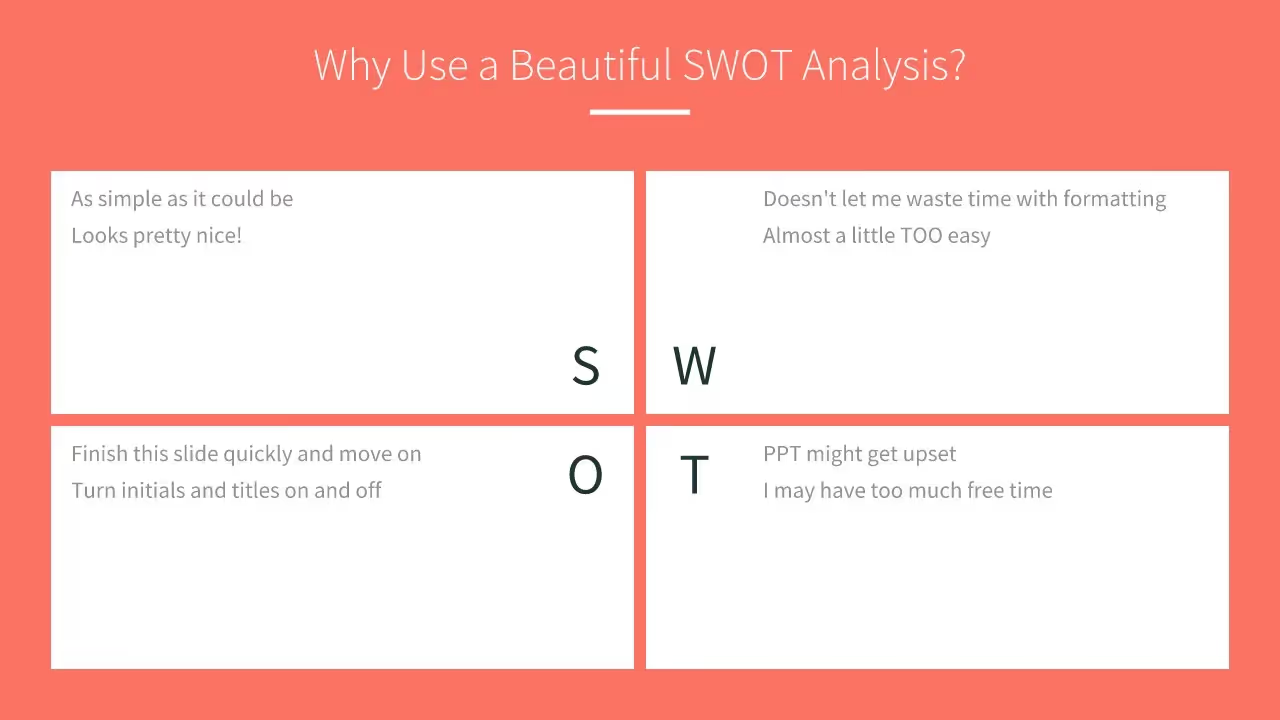
How to use the SWOT analysis template
Open the template
Click Use this template and the template opens in the Beautiful.ai editor.
Add your data
Type into the four quadrants, upload a document for context, or describe the decision and let AI fill it in.
Make it yours
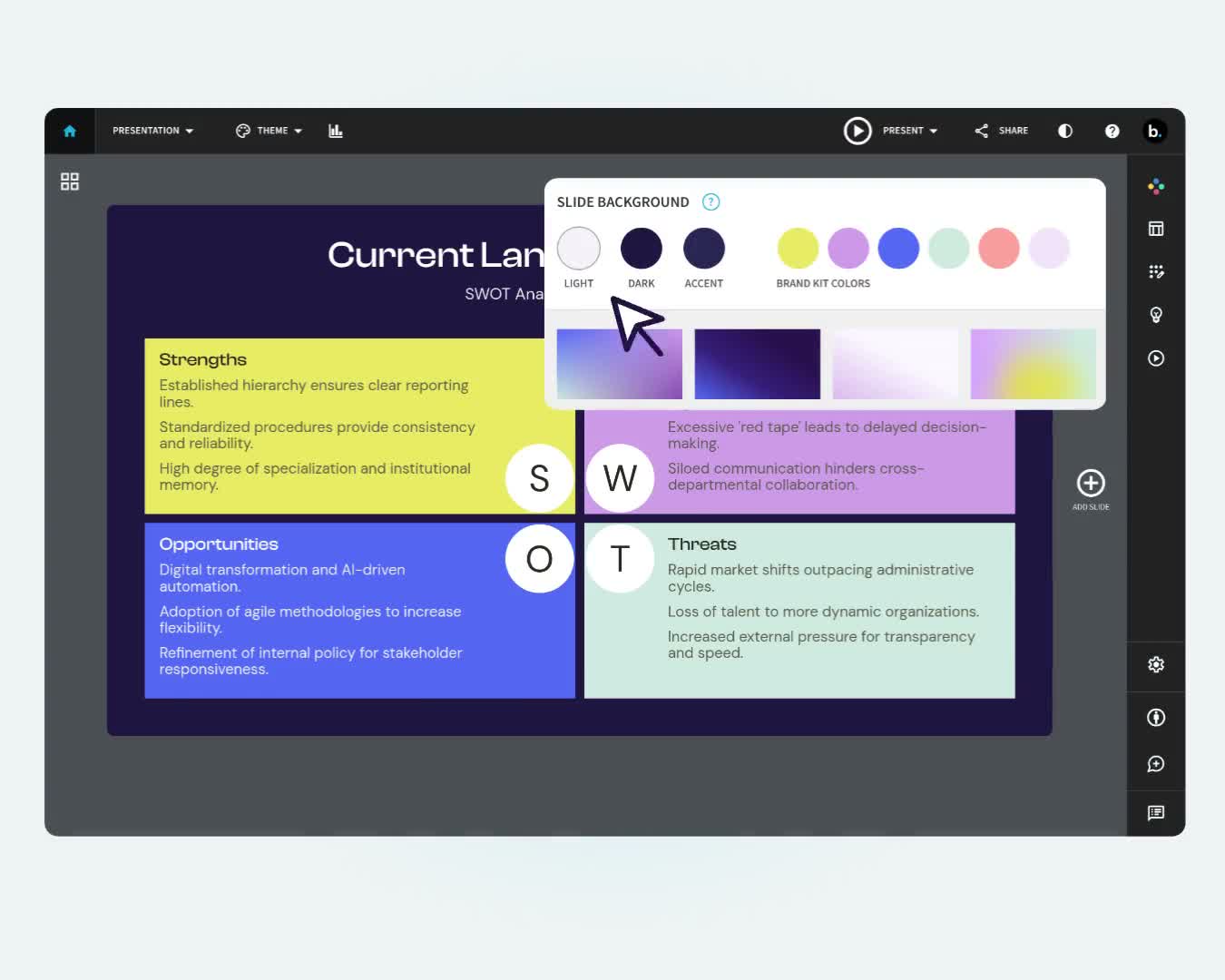
Adjust colors and labels to match your presentation; Smart Slides keep the layout aligned as you edit.
Present or export
Share a live link, present in Beautiful.ai, or export to PowerPoint, Google Slides, or PDF.
Pro Tips for SWOT Analysis Slides
Here are some things to remember when developing your SWOT analysis slide:

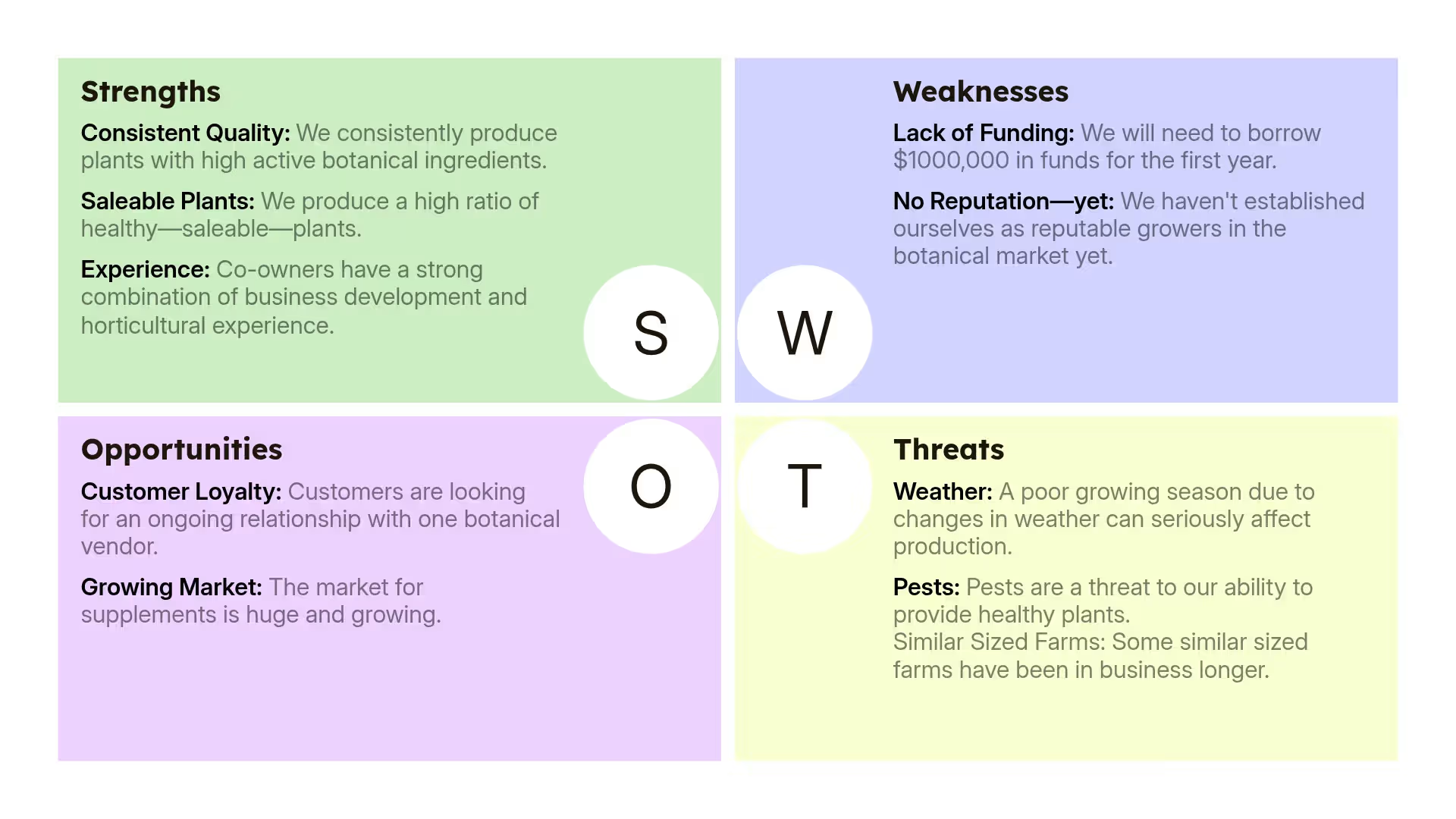
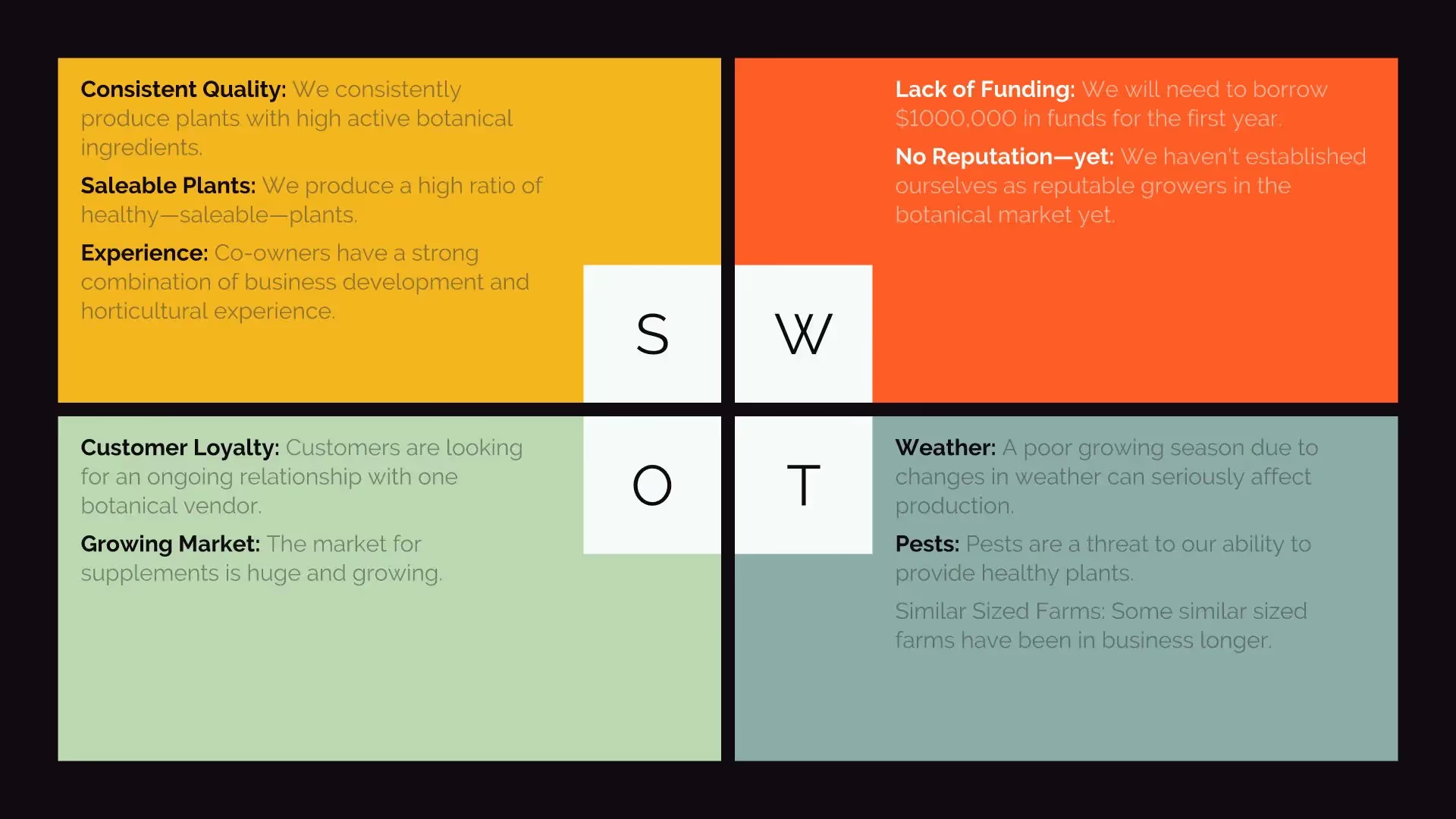
While the purpose of a SWOT analysis on its surface is to help your team decide on a specific action or project, the guiding principle should be the business goal underpinning that project. If the goal of the project in question is to increase customer satisfaction scores, make sure your SWOT items correspond to that goal and only that goal.
The order of your slide drastically affects the impact of your presentation. To keep your audience engaged and understanding the premise of your project, supplying positive information first (strengths) conveys a more constructive message.
Keep color and font easy to read. A SWOT analysis slide template using pale colors or decorative font might get lost. Remember that there are four categories to display so font size isn’t as large as single category slides.
To keep your audience on track with where you are in the presentation titles are important in each of your four sections. Capitalization also points attention to important pieces of information.
Discover AI capabilities for SWOT analysis
With these AI-driven features, you can build and refine your SWOT analysis slide in seconds.
Generate an AI SWOT analysis with a prompt
Add context with AI
Refine copy on a SWOT analysis slide
Use AI to create speaker notes
Browse more templates
SWOT analysis template FAQ
Lorem ipsum dolor sit amet, consectetur adipiscing elit, sed do eiusmod tempor incididunt ut labore et dolore magna aliqua. Ut enim ad minim veniam, quis nostrud exercitation ullamco laboris nisi ut aliquip ex ea commodo consequat. Duis aute irure dolor in reprehenderit in voluptate velit esse cillum dolore eu fugiat nulla pariatur.
More comparison templates
AI-powered Smart Slides that do the design for you
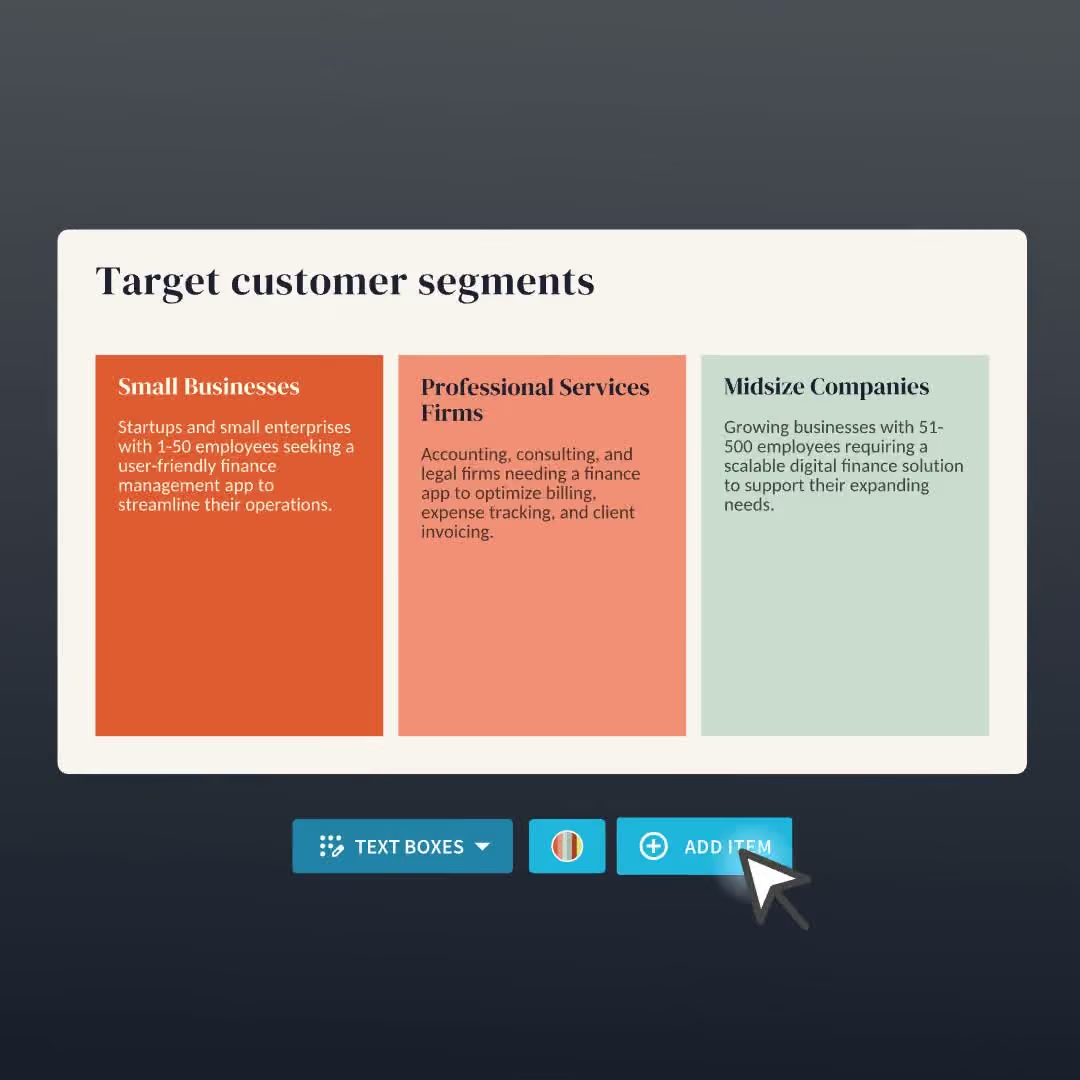
Build your next presentation using Smart Slides—the intelligent building blocks behind every Beautiful.ai presentation. Each Smart Slide is customizable, editable with AI, and automatically adapts layout and spacing as your content changes.


“Beautiful.ai helps us quickly create clear and compelling presentations to share our strategy and results. It has been easy to integrate our branding and to pull from the library of materials created by others — building a cohesive and collaborative suite that helps us advance our mission."

"Beautiful.ai increased our efficiency. I mean, 50% sounds crazy, but it's pretty accurate when you consider all of the manual stuff that we used to have to do that Beautiful.ai now does for us."

"What you guys have created is a foolproof way to ensure quality presentations. It's almost just like they have a graphic designer over their shoulder while they're creating their decks."

“For any business owner or entrepreneur where time is of the essence you lose the ability to put those nice touches on presentations, Beautiful.ai does it for you, especially if you aren't creatively gifted!”
Ready-to-use presentation templates for creating full, polished decks.



Pitch Decks



Reports & Reviews


Plans & Strategies
Try it free for 14 days
Start building Beautiful presentations.

